Active Directory – Error 0xc00002e2

Hey Guys,

Today I will post about a problem that occurs when a computer that has Active Directory installed and the server cannot start. If you have got a blue screen with an error code 0x00002e2 like the picture below, we have a solution for you.
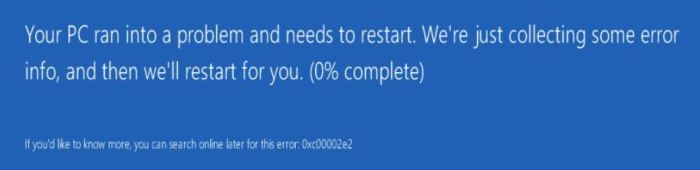
0x00002e2

It happened because the Active Directory database was probably corrupted. Follow these steps just if it occurred in a secondary AD.

First, we will restart the server into Directory Services Repair mode.

If you have doubt to proceed with it, you can follow this article

This slideshow requires JavaScript.

When windows starts, put in the admin credentials and go to server manager.
05

At Server Manager console, go to manage and then remove roles and features. Uncheck “Active Directory Domain Services” and “DNS server” to remove it. When the poup-up appears, click on “Remove features”.

This slideshow requires JavaScript.

If you receive an error message like “The Active Directory domain controller needs to be demoted before the AD DS role can be removed”, don’t worry.

11

On wizard, click on “Change button” and then type a credential that has domain admin’s privileges.

Now, check “Force the removal of this domain controller” and click in Next.
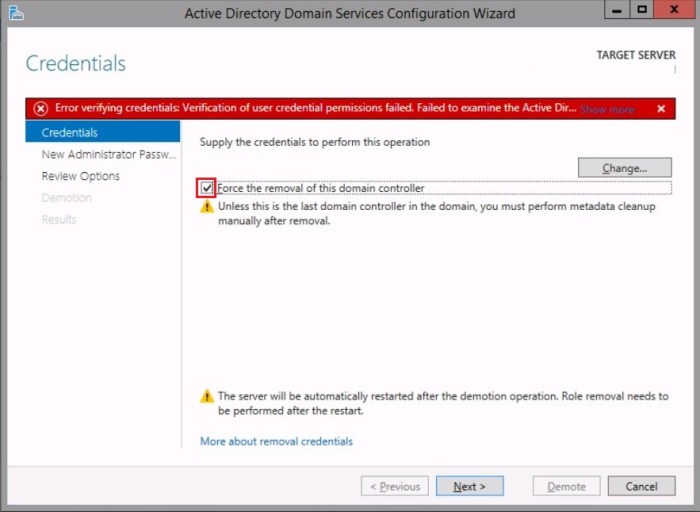
14

As your server will be a member server, you just have to type a new password for Administrator’s account. Type it, repeat the password and click next.

15

In this step, click in demote and wait some minutes.
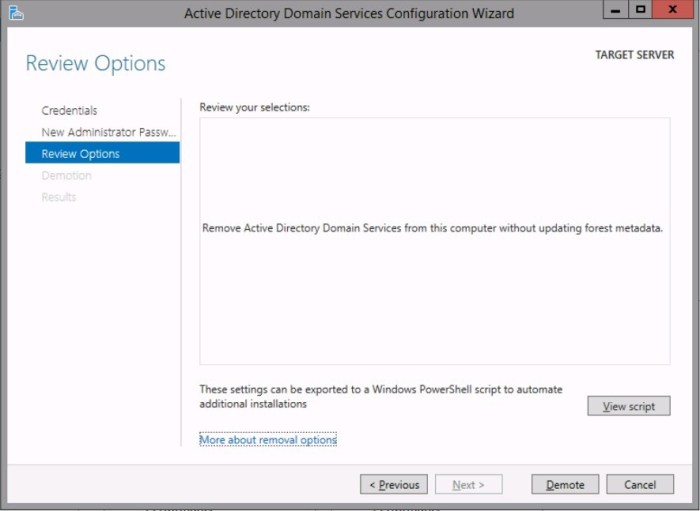
16

You will get a message about the sign out and the server will restart.

17

If you have done everything as mentioned in this article, now you have to clean up the metadata from Active Directory. The DC that you have removed, it still has objects in Active Directory.

You can follow this article to clean up the AD metadata.

TIP: If you try to delete the computer object (DC) in domain controllers’ OU and you receive an error message about privileges. Right-click on DC that you want to delete, click on properties, go to security tab and then grant explicit rights (full control) to your account, click ok and try to delete the demoted DC from Active Directory.

Right now, you have to replicate the changes to all Domain controllers in your environment.

In each DC open a command prompt as administrator and type:

repadmin /sync /AdePq

You should not receive any error, even if you don’t, you can double check and certify that the deleted DC is not appearing in Domain Controllers’ Organization Unit.

Do it in each Domain controller.

Now you are able to promote the server as Domain controller again.

I hope this guide helps you to fix the problem.

See you on the next post!
Nano’s server installation – Part 2

Hello friends,

I am back and today, we will continue talking about Nano’s server installation.
As I mentioned in the last article, we will learn how to configure the NIC interface, I would also like to show you how to open firewall’s ports. We will test our IIS server as well.

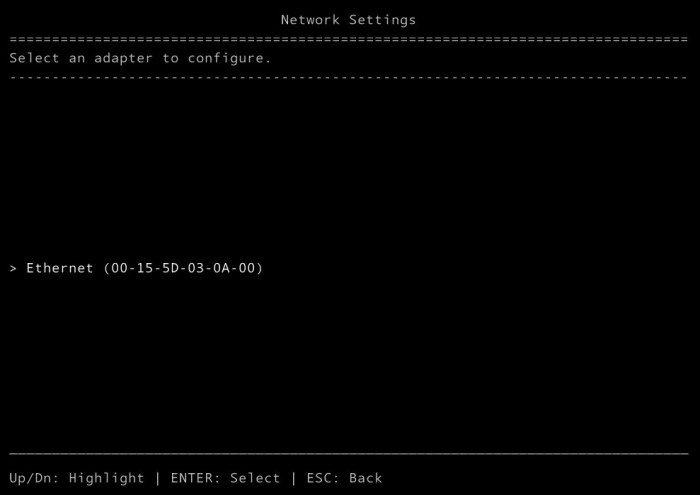
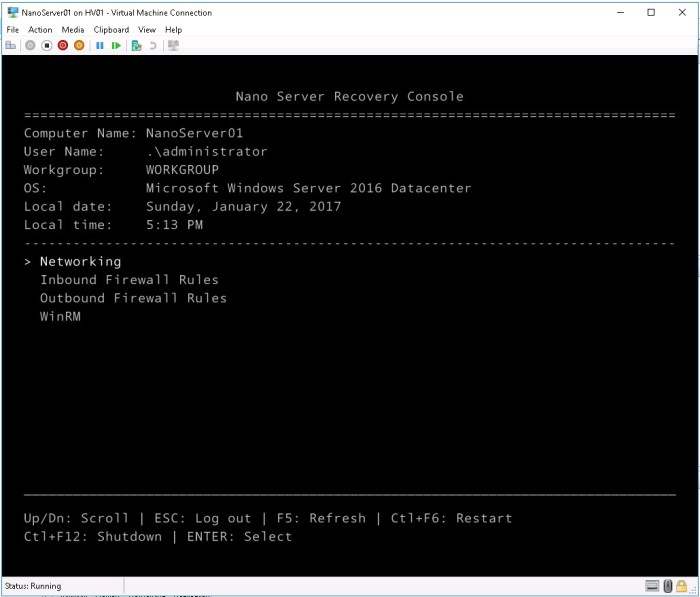
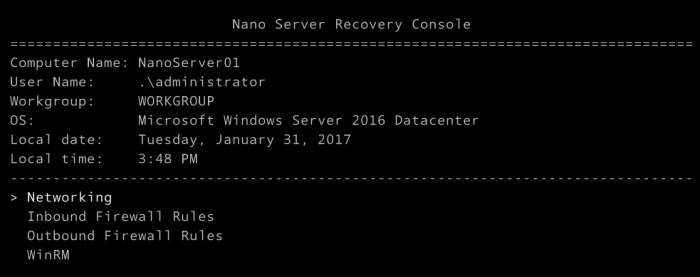
First thing, in the Nano server recovery console, we have to configure the NIC adapter. Select Networking and press enter.

01_windowsserver2016-installingnanoserver-part-2

Now, you should see a network adapter available to be configured. Select it and then press enter.

02_windowsserver2016-installingnanoserver-part-2

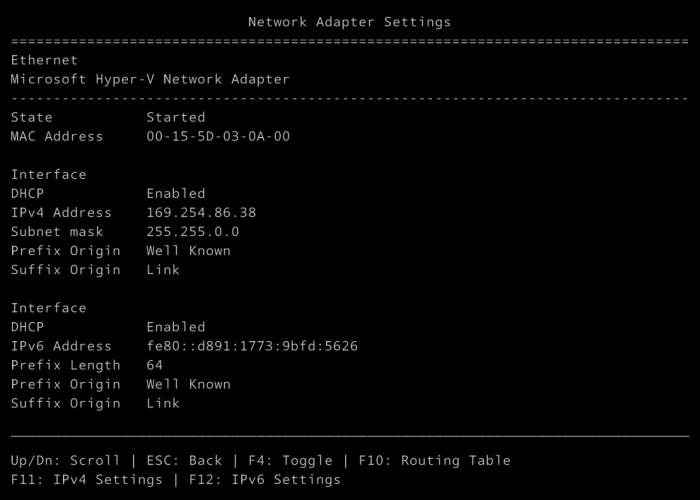
You will see detailed information about the NIC adapter. Information like state, MAC Address, if the NIC adapter is using DHCP or it is configured with a manual IP address. You will also see the subnet mask, DNS servers, and driver’s information as well. Check that all commands available to manipulate the NIC adapter are present on the screen’s bottom.
In this example, I will show you how to configure IPv4. To do it, press F11 to enter on the IPv4 settings.

03_windowsserver2016-installingnanoserver-part-2

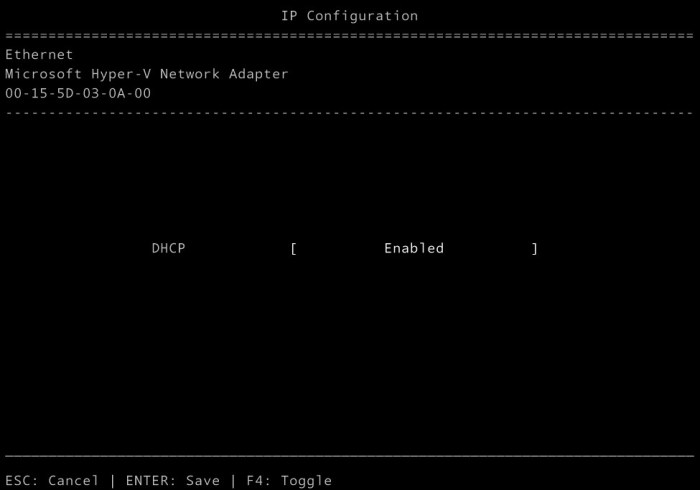
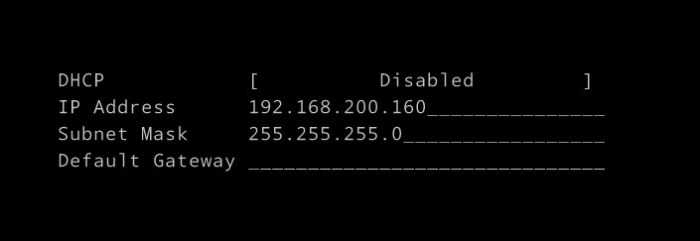
Now, press F4 to switch the NIC configuration from DCHP to manual.
Put the IP address according your network.

04_windowsserver2016-installingnanoserver-part-205_windowsserver2016-installingnanoserver-part-2

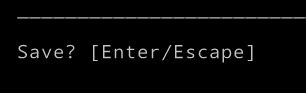
Press Enter to saving changes. You will be demanded to save, press enter again

06_windowsserver2016-installingnanoserver-part-207_windowsserver2016-installingnanoserver-part-2

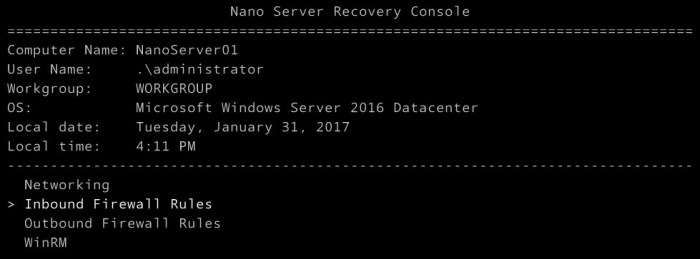
That’s nice! You have done the NIC adapter’s configuration. Press ESC twice and you should be back on the home screen. Now, we will send ping packets from the Hyper-V host to check if the IP configuration is working well. But first, we have to enable the Nano to reply to ping requests. Go to Inbound firewall rules and press enter.

08_windowsserver2016-installingnanoserver-part-2

On the firewall rules’ screen, we will enable two inbound rules.

  • File and Print Sharing (SMB-In) – To enable the port TCP 445 that will be used to connect to \\nanoserver01\c$
  • File and Print Sharing – (Echo Request – ICMPv4-In) – To enable Nano Server 01 to respond to ICMP request.

Enter in which firewall rule and press F4 to enable the specific rule. You will see the field Enabled will be changed from No to Yes.

This slideshow requires JavaScript.

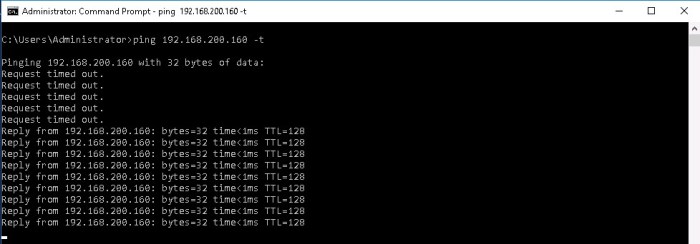
Leave a command prompt pinging to our nano server.
When the rule “File and Print Sharing – (Echo Request – ICMPv4-in) has been enabled, replies will be shown on the prompt command.

12_windowsserver2016-installingnanoserver-part-2

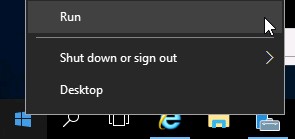
On the Hyper-V server, right-click on windows menu and then click in Run.

13_windowsserver2016-installingnanoserver-part-2

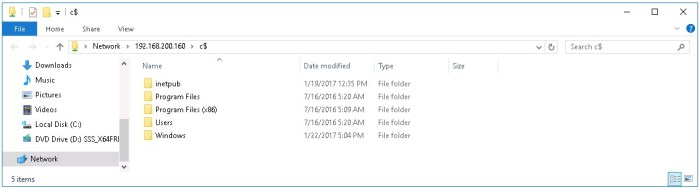
Type \\192.168.200.160\c$ .It should open the remote administrative share from our nano server.

14_windowsserver2016-installingnanoserver-part-2

15_windowsserver2016-installingnanoserver-part-2

Now, let’s go to C:\inetpub\wwwroot and create a TXT file.

16_windowsserver2016-installingnanoserver-part-2

Put the code bellow on the txt file and save it as default.htm.

<p>Patrick Albuquerque<br />Nano’s server installation</p>
<p><a href=”http://patrickdbarros.com”>http://patrickdbarros.com</a></p&gt;
<p>31/01/2017</p>

17_windowsserver2016-installingnanoserver-part-2

Let’s open the Internet explorer. Now, type the nano’s server ip address on the url box.
http://192.168.200.160. That’s A-W-E-S-O-M-E!

18_windowsserver2016-installingnanoserver-part-2

In this article, you have learned how to configure the NIC adapter on the nano server recovery console. You were able to configure firewall rules to allow network traffic like SMB and ICMP. You were also able to create a simple html file to validate our IIS installation.

I hope it helped you to understand a little bit more about this new windows server operating system. If you have questions or suggestions, leave a comment or e-mail me.

See you soon.

Nano’s server installation – Part 1

Hello friends,

I am back and today, I will talk a little bit more about Nano server. In this article, I will show you a step-by-step process to deploy it. I would also like to explain how to add packages and further discuss details about Powershell cmdlets used to deploy it. The installation and configuration will be divided in two articles. This is the first part! Let’s get start.

The first step to install Nano server is to “get the Windows Server 2016 ISO” on the Microsoft Download Center. In order to find it, just google Windows Server 2016 and a download link can be obtained easily.

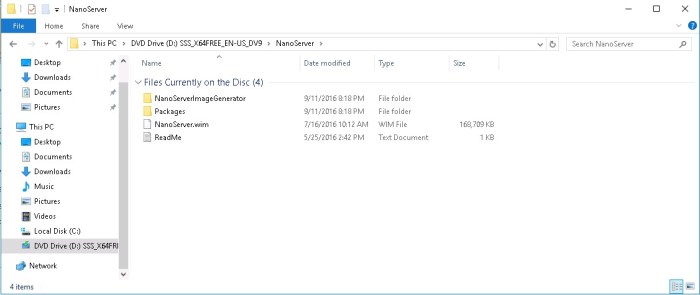
Once you got the ISO media, mount it and go to CD Drive:\Nano Server folder.

screenhunter_599-jan-19-16-46

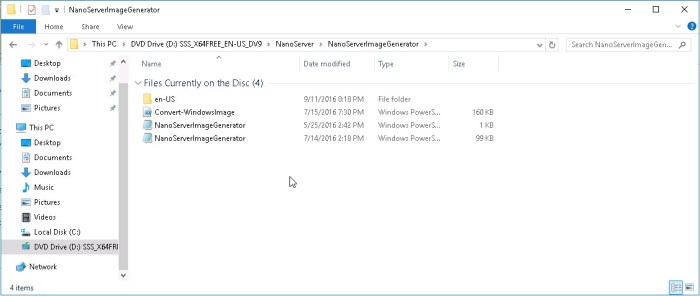
In this folder, you will find two sub folders. The first one is NanoServerImageGenerator.
In this sub folder, you will find the Powershell scripts needed to deploy a Nano server vhd.

screenhunter_600-jan-19-16-46

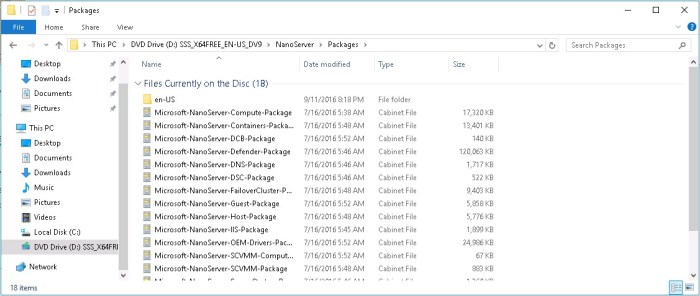
The second sub folder is named Packages. Everything that you want to add in a Nano Server installation will be found in this folder. For example, if you want to deploy a Hyper-V Server, open a Powershell console,  go to \Packages, then lastly, run a Powershell cmdlet in order for the Hyper-V Server Role to be installed.

screenhunter_601-jan-19-16-47

Another two files will be found on NanoServer folder:

  • wim – this file contains a base image for a Nano Server.
  • txt – it is just an informational file.

Let’s get started and install the Nano Server

Open a Powershell console as administrator and run the following cmdlet

screenhunter_602-jan-19-17-00

It will import the NanoServerImageGenerator module.
The parameter “-verbose” is just to verify which news cmdlet are available.

We will use “New-NanoServerImage” cmdlet to install our first Nano server. I will also likewise explain all parameters used in this example. Bellow the complete cmdlet.

New-NanoServerImage –MediaPath ‘D:\’ –TargetPath C:\VMS\NanoServer01\NanoServer01.vhd –Edition DataCenter –DeploymentType Guest – ComputerName NanoServer01 –Package ‘Microsoft-NanoServer-IIS-Package’

screenhunter_604-jan-19-17-36

  • New-NanoServerImage – cmdlet needed to deploy a Nano server.
  • -MediaPath – you should specify the location of Windows server 2016 installation media.
  • -TargetPath – folder location where the Nano’s server vhd file will be save.
  • -Edition – Choose the Operating System version edition desired.
  • -DeploymentType – you can select guest or host, if you select guest it means the Nano server will be placed in a Hyper-V host. If you choose Host, it means Nano Server will be installed in a physical machine.
  • -ComputerName – to determine Nano’s server name
  • -Package – to specify which additional package will be installed.

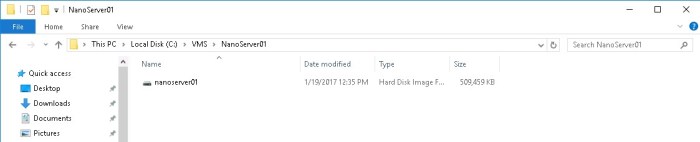
After some minutes, the installation will be done. Let’s go to the target folder that we used in our example and let’s check the vhd file. As we can see from the screenshot below, the vhd file has less than 500 MB.

screenhunter_626-jan-22-21-49

Once we have the vhd done, let’s attach it and create a new virtual machine in our Hyper-V Host.
Open a Powershell and type the cmdlet bellow.

screenhunter_628-jan-22-22-01

Finally, let’s start our Nano server

screenhunter_629-jan-22-22-04

Open Server Manager console, click in Tools and then select Hyper-V Manager. You will see that our Nano Server will be already started. Right-click on NanoServer01 and then click on Connect…

screenhunter_630-jan-22-22-07screenhunter_631-jan-22-22-11

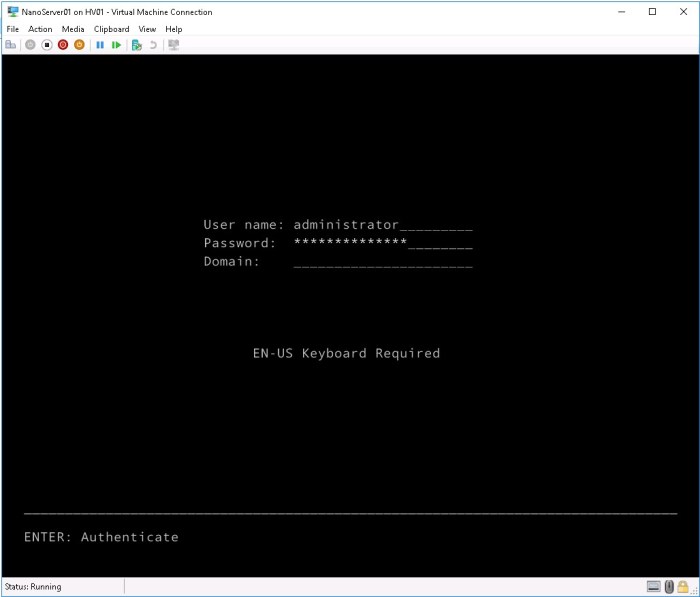
Here we are! Now you can see the “Nano Server Recovery Console”, write down the credentials and login!

screenhunter_632-jan-22-22-13

Now you have already been logged in on our Nano server.

screenhunter_633-jan-22-22-14

In the next post we will configure the network interface, configure the firewall to open some TCP ports, validate the IIS installation and use Powershell to manage this VM.

I hope this article help you to understand a little bit more about Nano’s Server deployment and how it works. If you have questions, feel free to send me a message. It will be my pleasure!

See you in the next post “Nano’s server installation – Part 2”

Windows Server 2016 – Hyper-V cannot be installed: The Processor does not have required virtualization capabilities

Hello Friends,

Nowadays virtualization has an important role in IT. We need this to validate an upgrade path, to deploy new scenarios or just to do experimental things in a lab environment before putting it in a Production network.

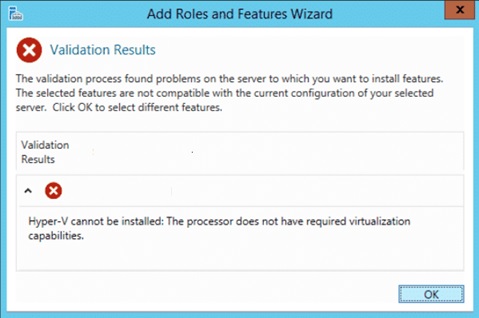
While I was setting up my lab environment to deploy Hyper-V on Windows Server 2016, I got the following error message:

“Hyper-V cannot be installed: The Processor does not have required virtualization capabilities”

hypervcannotbeinstalled01

I am using Windows Server 2016 on an ESXi 6 Hypervisor.

To “fix” this issue, we have to edit the VM configuration on vCenter.

Go to vCenter WebClient and then right click on the Virtual Machine and select Edit Settings…

Once opened, expand CPU settings and then mark the check box “Expose Hardware assisted virtualization to the guest OS”.

This feature is needed to run a new layer of hypervisor inside the guest OS.

hypervcannotbeinstalled02

Then click ok and afterwhich, the Hyper-V server role installation should be done with success.

See you in my next post.