Hello friends,
I am back and today, we will continue talking about Nano’s server installation.
As I mentioned in the last article, we will learn how to configure the NIC interface, I would also like to show you how to open firewall’s ports. We will test our IIS server as well.
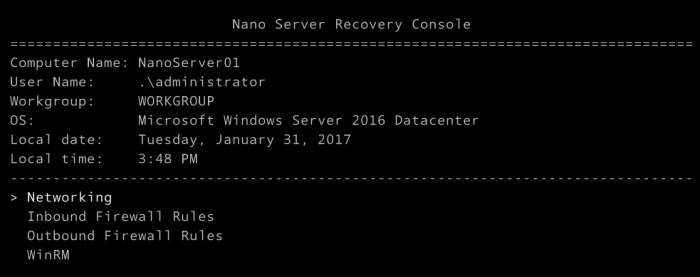
First thing, in the Nano server recovery console, we have to configure the NIC adapter. Select Networking and press enter.
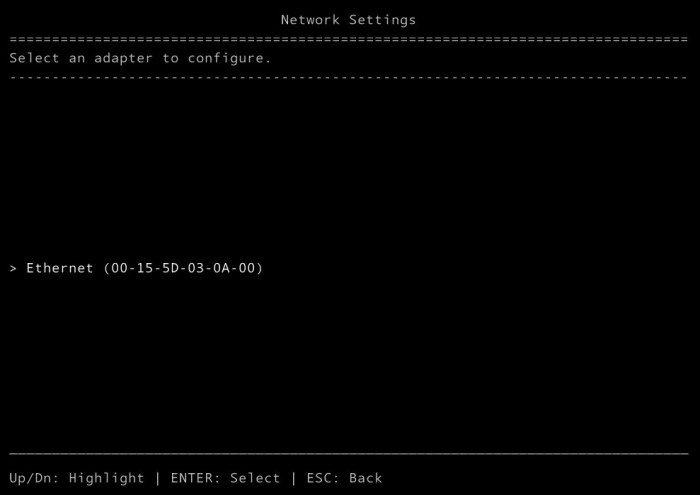
Now, you should see a network adapter available to be configured. Select it and then press enter.
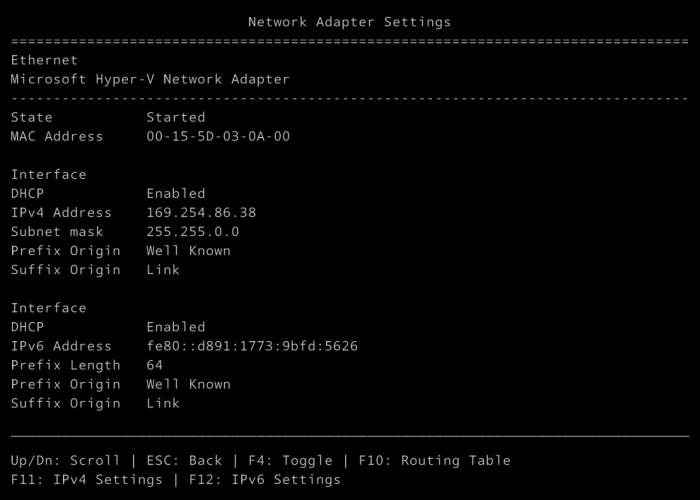
You will see detailed information about the NIC adapter. Information like state, MAC Address, if the NIC adapter is using DHCP or it is configured with a manual IP address. You will also see the subnet mask, DNS servers, and driver’s information as well. Check that all commands available to manipulate the NIC adapter are present on the screen’s bottom.
In this example, I will show you how to configure IPv4. To do it, press F11 to enter on the IPv4 settings.
Now, press F4 to switch the NIC configuration from DCHP to manual.
Put the IP address according your network.
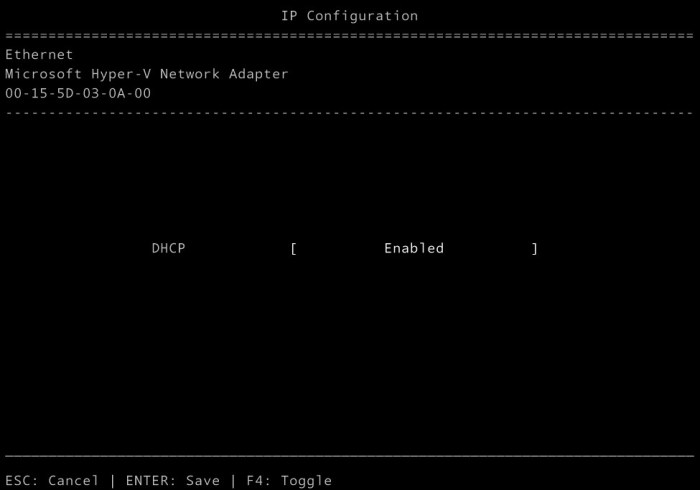
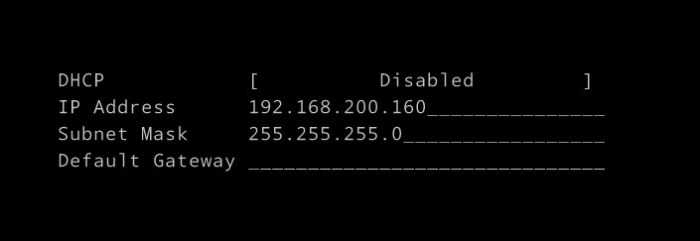
Press Enter to saving changes. You will be demanded to save, press enter again
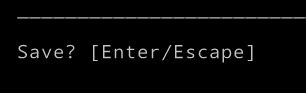

That’s nice! You have done the NIC adapter’s configuration. Press ESC twice and you should be back on the home screen. Now, we will send ping packets from the Hyper-V host to check if the IP configuration is working well. But first, we have to enable the Nano to reply to ping requests. Go to Inbound firewall rules and press enter.
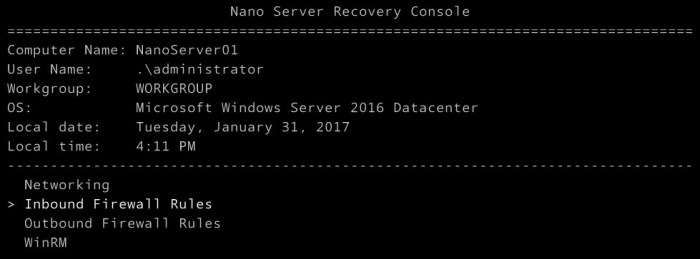
On the firewall rules’ screen, we will enable two inbound rules.
- File and Print Sharing (SMB-In) – To enable the port TCP 445 that will be used to connect to \\nanoserver01\c$
- File and Print Sharing – (Echo Request – ICMPv4-In) – To enable Nano Server 01 to respond to ICMP request.
Enter in which firewall rule and press F4 to enable the specific rule. You will see the field Enabled will be changed from No to Yes.
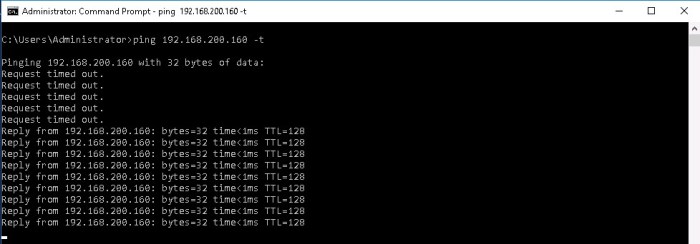
Leave a command prompt pinging to our nano server.
When the rule “File and Print Sharing – (Echo Request – ICMPv4-in) has been enabled, replies will be shown on the prompt command.
On the Hyper-V server, right-click on windows menu and then click in Run.
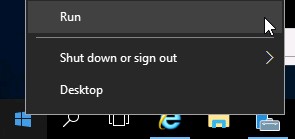
Type \\192.168.200.160\c$ .It should open the remote administrative share from our nano server.

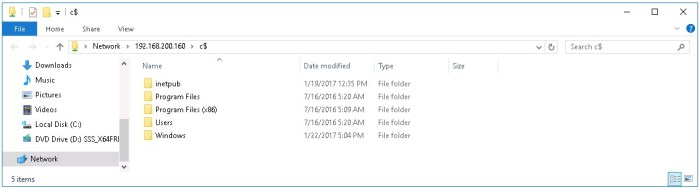
Now, let’s go to C:\inetpub\wwwroot and create a TXT file.

Put the code bellow on the txt file and save it as default.htm.
<p>Patrick Albuquerque<br />Nano’s server installation</p>
<p><a href=”http://patrickdbarros.com”>http://patrickdbarros.com</a></p>
<p>31/01/2017</p>

Let’s open the Internet explorer. Now, type the nano’s server ip address on the url box.
http://192.168.200.160. That’s A-W-E-S-O-M-E!

In this article, you have learned how to configure the NIC adapter on the nano server recovery console. You were able to configure firewall rules to allow network traffic like SMB and ICMP. You were also able to create a simple html file to validate our IIS installation.
I hope it helped you to understand a little bit more about this new windows server operating system. If you have questions or suggestions, leave a comment or e-mail me.
See you soon.
 Patrick de Barros Albuquerque